Surveys by Collection
Use this page to manage your collections and surveys, and to review, edit or delete individual surveys and measurements.
The page lists every collection you have opened from the site page, starting with the newest. Each collection’s surveys are listed underneath it, also from newest to oldest.
Navigation
The view has three levels:
Collections › Survey › Measurement
- Click a survey row to open its Survey Page.
- Click a measurement row on the survey page to open its Measurement Page.
Once you open a survey, a breadcrumb appears at the top showing your current location. Click Collections to return to the collection list, or Survey to return to the survey you came from.
Collections
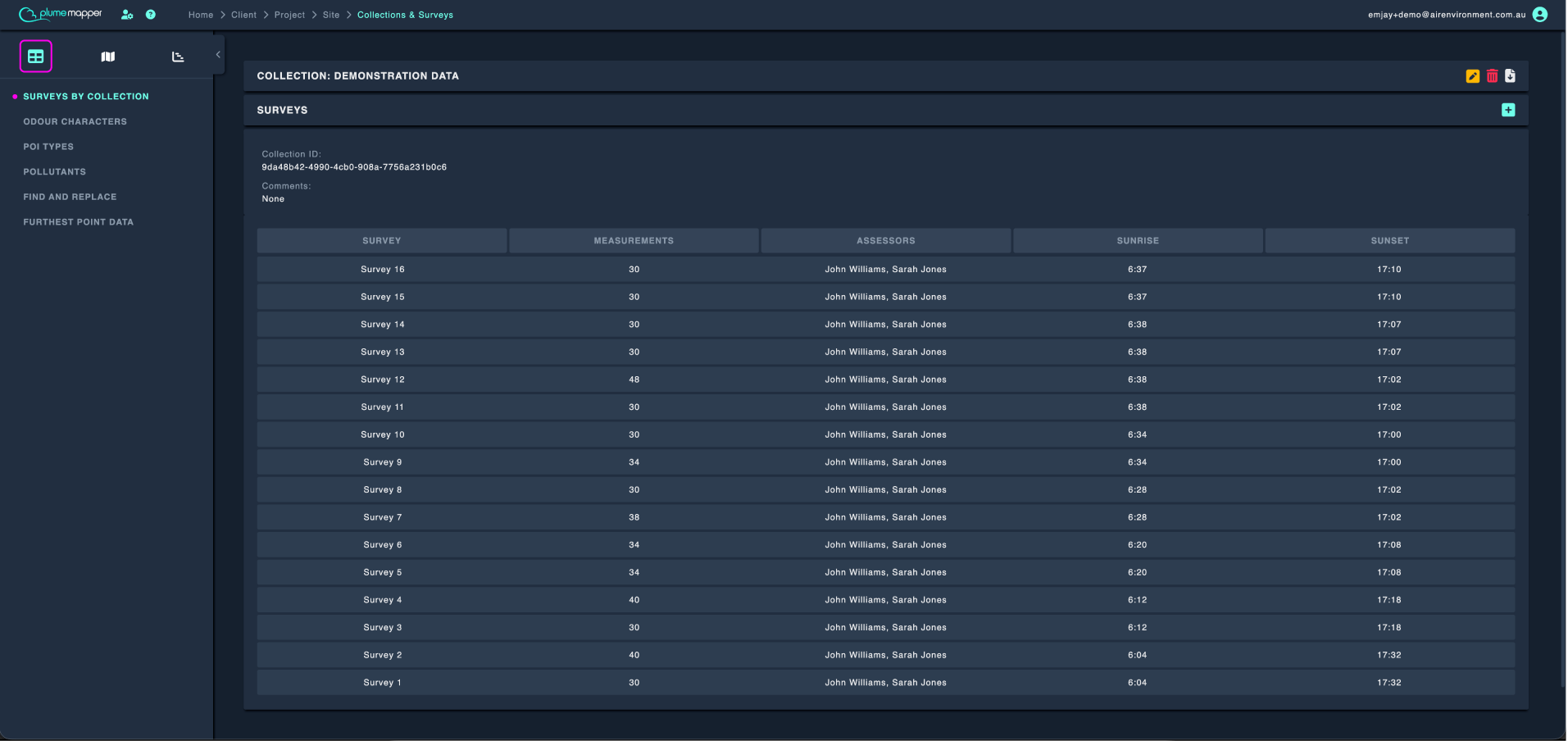
Each collection appears under a Collection: <name> header with three icons:
- Edit - opens Edit Collection.
- Delete - deletes the collection.
- Export - downloads a CSV export of every survey in the collection.
Below the header are the collection’s details:
- Collection ID - the collection’s unique ID. Useful when contacting support.
- Comments - the collection’s comment, or None.
Edit a Collection
1. Click the icon in the collection header to open Edit Collection.
2. Update the name and/or comments.
- A name is required and must be under 200 characters.
- When you add or change a comment, it is saved with your name and the current date.
3. Click Update.
Delete a Collection
A collection can only be deleted once it is empty.
1. Click the icon in the collection header.
- If the collection still has surveys, a dialog lists them and asks you to delete them first. Delete each survey from its Survey Page, then try again.
- If the collection is empty, a confirmation dialog opens.
2. Type the collection’s name exactly as shown, then click Delete.
Warning: This permanently deletes the collection and cannot be undone. If it was the last collection you had open, you are taken back to the site page.
Export a Collection
Click the icon in the collection header. The export is prepared and downloaded as a CSV file containing every survey in the collection.
Note: If the export fails, an error message explains why. Try again, and contact support if it keeps failing.
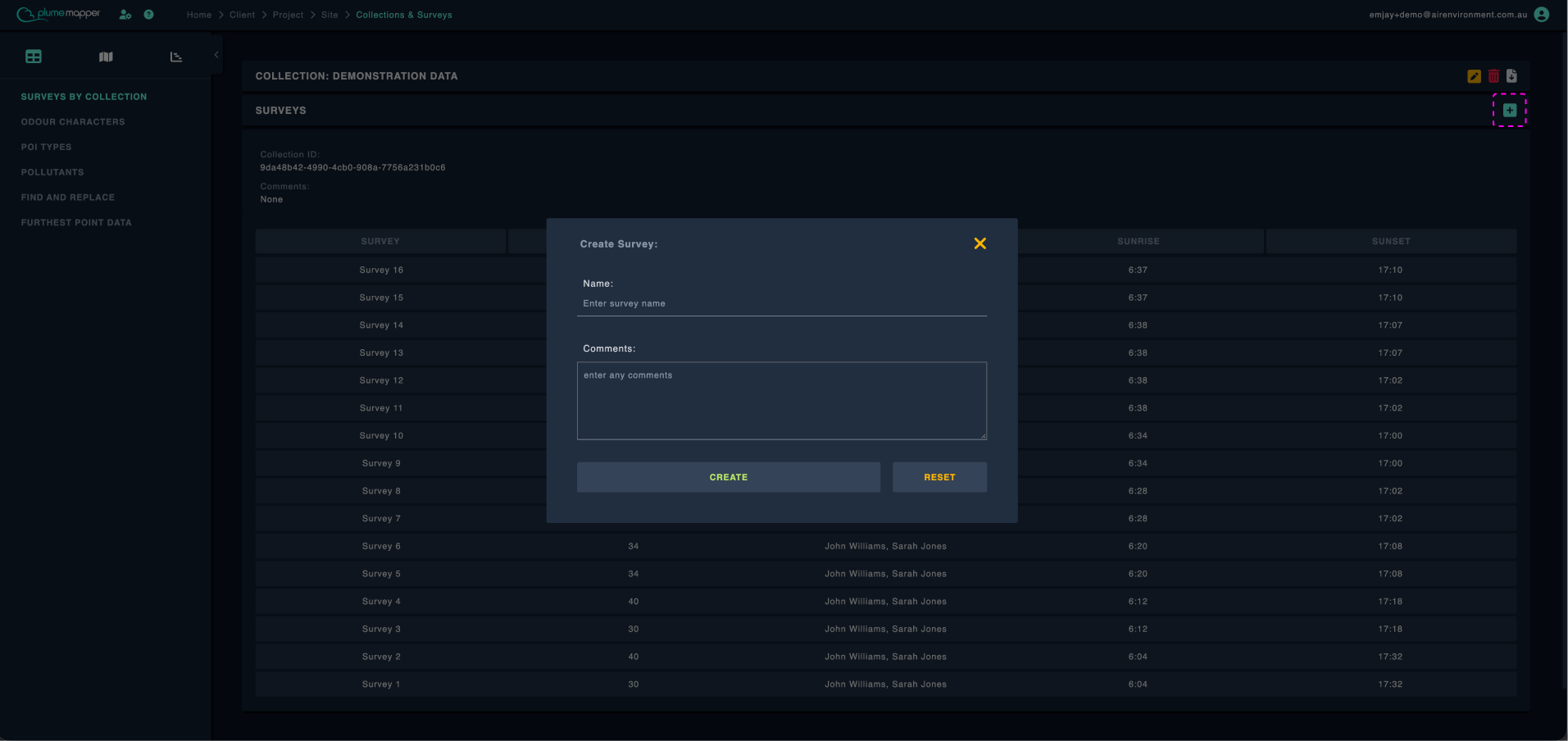
Add a Survey
Surveys are usually created in the mobile app when assessors start recording, but you can also create one here - for example, to set up a survey before heading into the field.
1. Click the icon next to Surveys under the collection you want to add it to. Create Survey opens.
2. Enter a name.
- Survey names must be unique within the collection. The check ignores capital letters, so Morning Run and morning run are treated as the same name.
- If left blank, the name defaults to the current date and time, for example Tue Sep 22 2026 (9:30:00 AM).
3. Add any comments. Comments are saved with your name and the current date.
4. Click Create. Click Reset instead to clear the form.
When the survey is created:
- Its start time is set to the time it was created.
- Sunrise and sunset are calculated for the site’s location on that date.
Survey Table
Below each collection’s details is its survey table. Each row shows:
- Survey - the survey name.
- Measurements - the number of measurements in the survey. Deleted measurements are not counted.
- Assessors - every assessor who recorded a measurement in the survey.
- Sunrise / Sunset - for the site’s location on the date the survey was created, in 24-hour time.
Click a row to open the survey.
Note: A collection with no surveys shows its Collection ID and No surveys in collection instead of the table.
Survey Page
Header icons:
- Edit - opens Edit Survey, where you can change the name, start and end time, and comments, then click Update.
- A name is required and must be under 200 characters.
- Start and end times cannot be set in the future.
- Delete - permanently deletes the survey and all its measurements. Type the survey’s name to confirm, then click Delete. This cannot be undone.
- Export - downloads a CSV export of the survey.
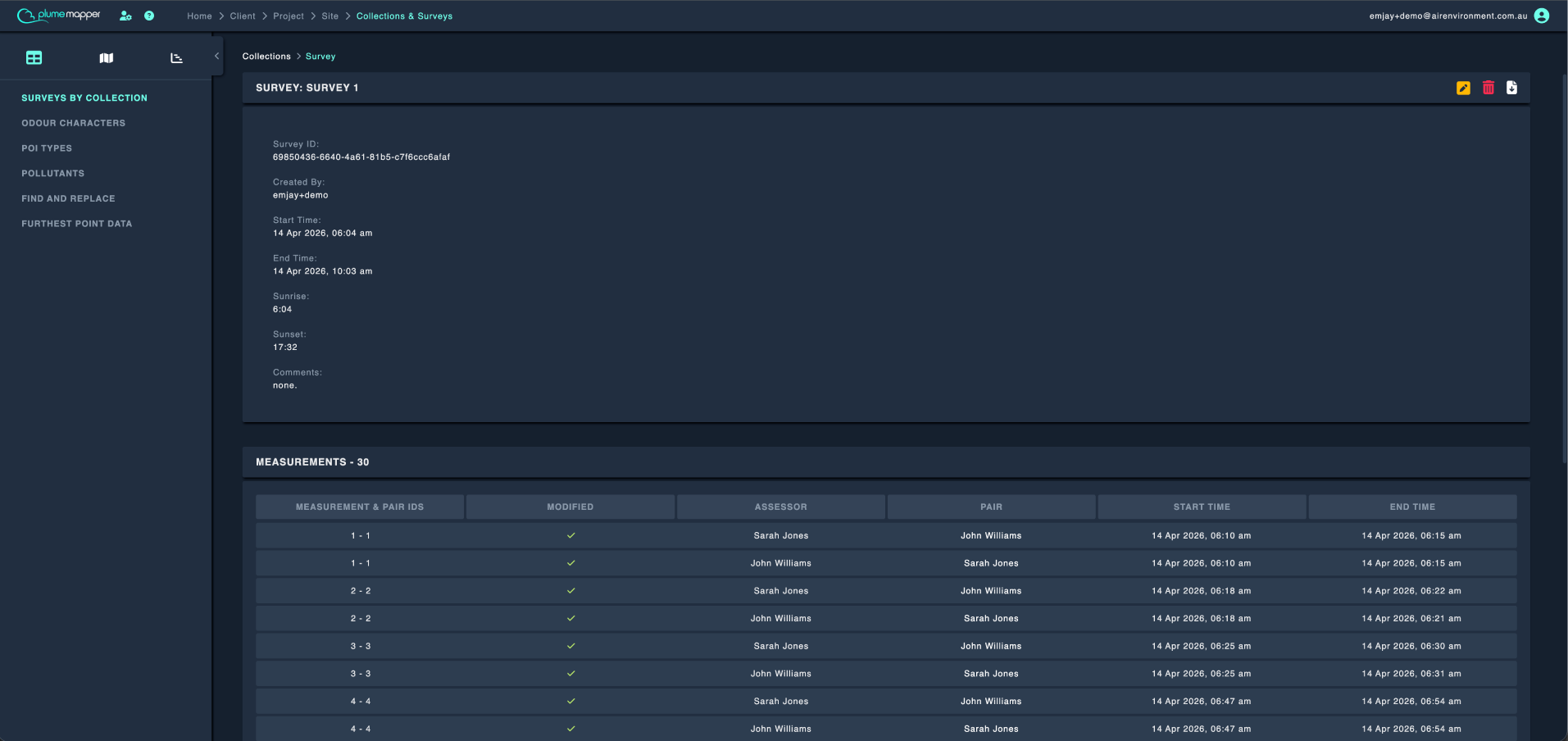
Survey info: survey ID, created by, start/end time, sunrise/sunset, comments, and the site’s custom scales in use (if any).
Equipment Used lists the equipment recorded for the survey, and who used it. Click a row to expand its Internal ID, Serial Number, Model, Brand and Last Calibrated Date.
Measurements lists every measurement in the survey:
- Measurement & pair IDs - the measurement number, and its pair number (0 if unpaired).
- Modified - a green tick if the measurement has been edited, a red cross if not.
- Assessor
- Pair - the pair value, or a red cross if the measurement is unpaired.
- Start Time / End Time
Click a row to open the measurement. Deleted measurements are excluded from this table.
Deleted Measurements (shown only if any exist) lists each deleted measurement’s Created By, Deleted By, Deleted At and Comment. Click a row to view it - deleted measurements are read-only.
Measurement Page
Header icons:
- - jumps to the measurement’s location on the map.
- Edit - opens the measurement editor. For merged or paired measurements, choose which assessor’s data to edit first; the lead measurement is marked (Lead).
- Delete - moves the measurement to Deleted Measurements. Choose a reason - Accidental, Test Data or Other (with a description) - then click Delete.
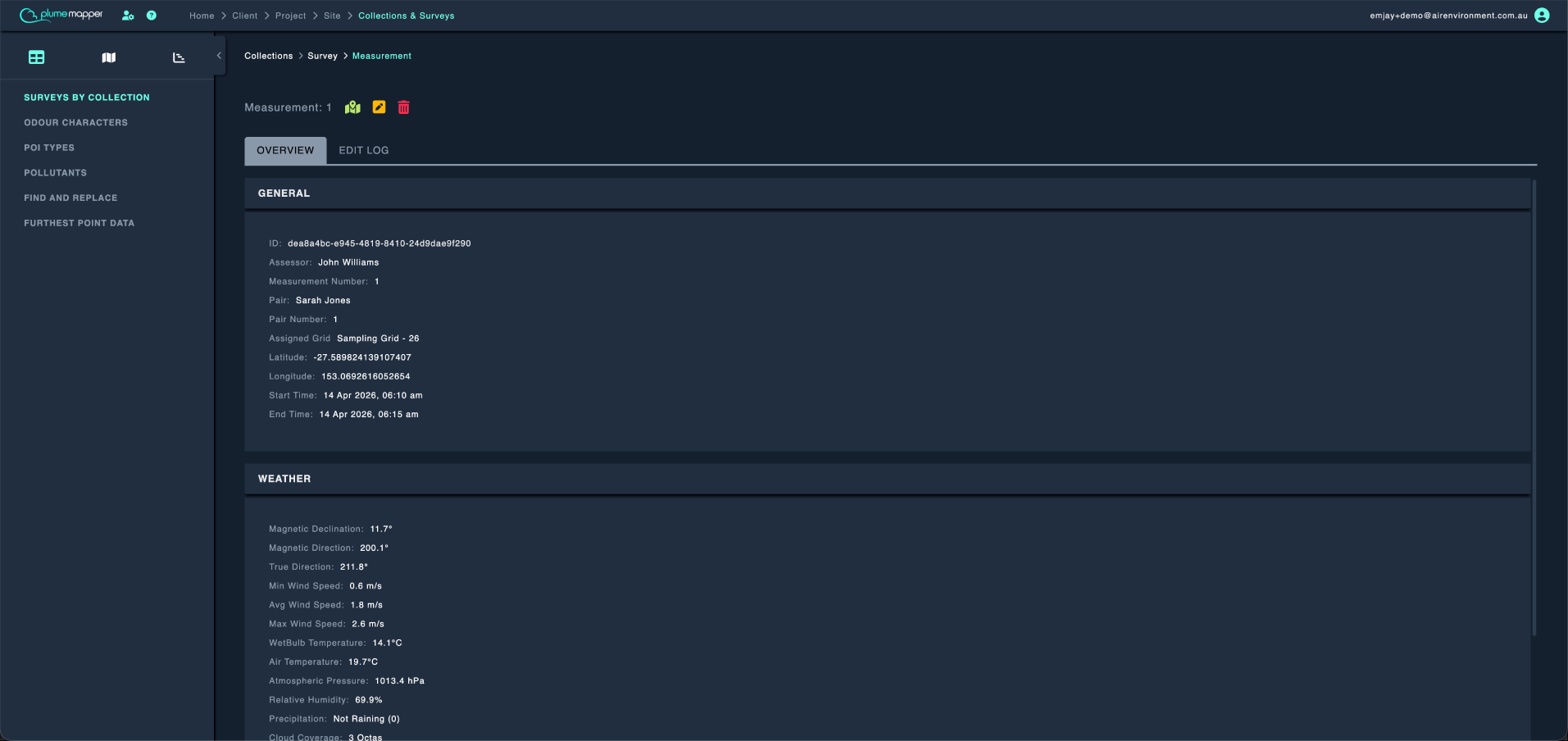
Overview tab shows the measurement’s data, read-only:
- General - Assessor, Pair, Assigned Grid, Latitude, Longitude, Start/End Time, Comments (plus deletion details for deleted measurements).
- Weather - Wind Direction, Min/Avg/Max Wind Speed, Air Temperature, Precipitation, Cloud Coverage and Type. Timed measurements show separate Start and End columns.
- Odour Data - Source, Character, intensity, tone, duration and Concentration.
- Pollutant Data - Pollutant Type, Unit and Current Device Reading, if any were recorded.
- Sniff Data (timed measurements only) - one row per sniff, with Source, Character, intensity and any per-sniff Hedonic Tone.
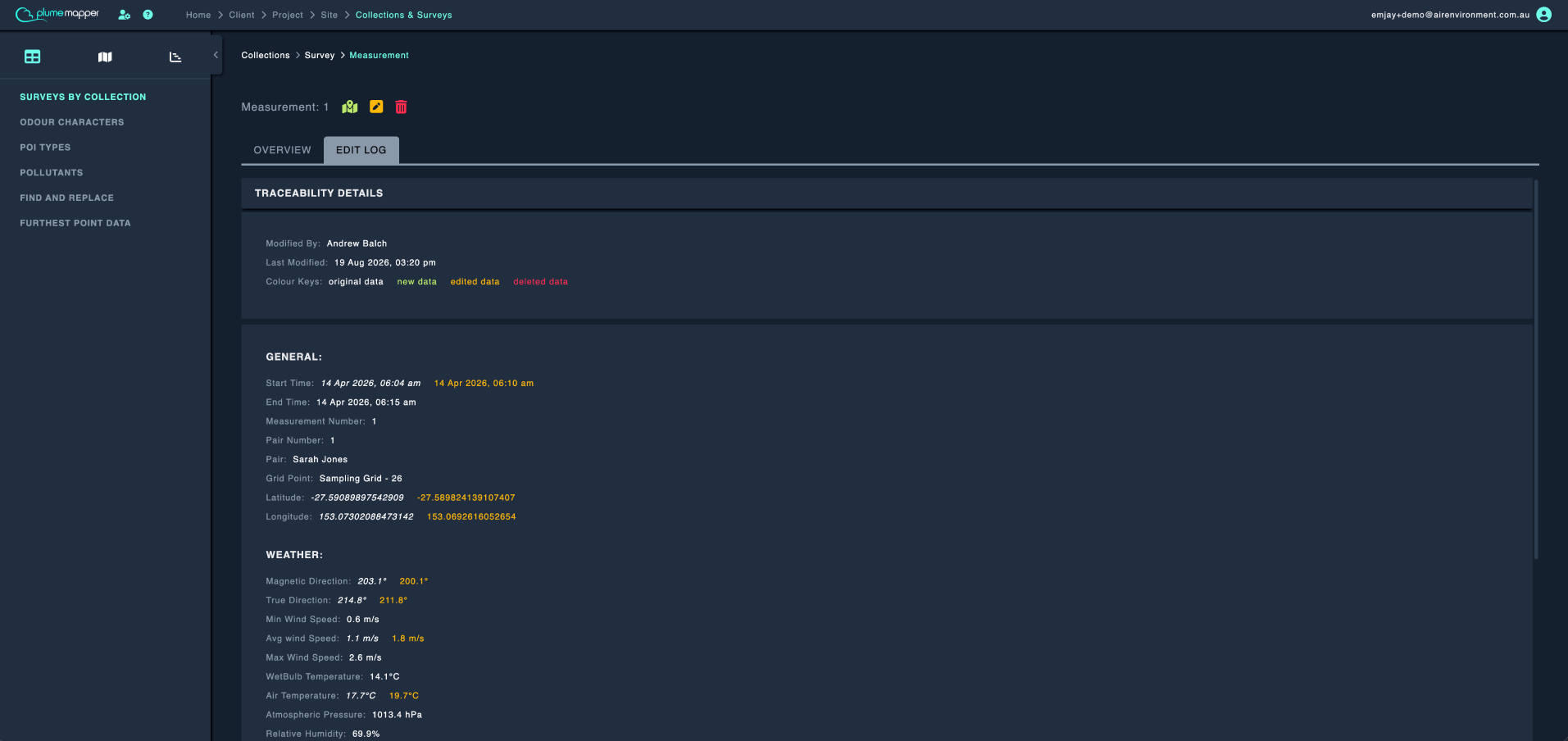
Edit Log tab shows the measurement’s edit history:
- If the measurement hasn’t been edited, it says so.
- Otherwise it shows who last modified it and when, a colour key for original, new, edited and deleted data, and a field-by-field comparison of the original and changed values.