Community Complaints
A site can hold two kinds of community complaint data:
- Imported Complaints - complaint records you upload.
- OdourRadar Reports - public odour reports made through the Odour Radar app, from people near your site.
Imported Complaints
Imported complaints are added through Admin Portal. See import complaints.
OdourRadar Reports
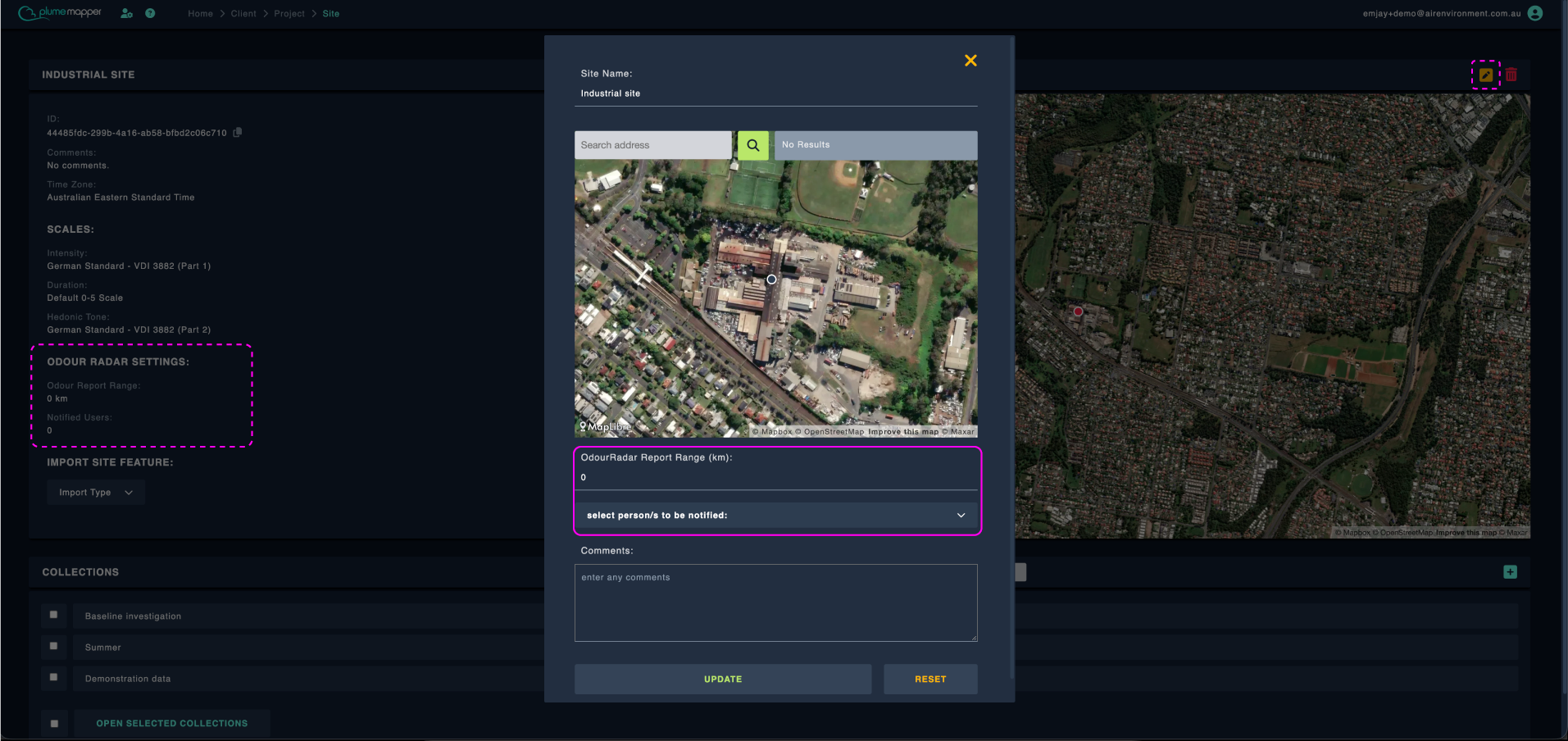
Set the Report Range
Set the range when you create a site, or edit it later from the site page.
1. Enter the OdourRadar Report Range (km). Once you have picked the site’s location on the map.
2. Optionally, select who should be notified from the select person/s to be notified dropdown. It lists the people in your organisation, and they receive real-time notifications when a report is made.
Note: A range is required if you select people to notify. If the range is left at 0, no reports are shown on the site.
The site page displays the current settings under Odour Radar Settings:
- Odour Report Range - the range in km.
- Notified Users - the number of people notified. Hover over it to see their email addresses.
Validate a Report from an Alert Email
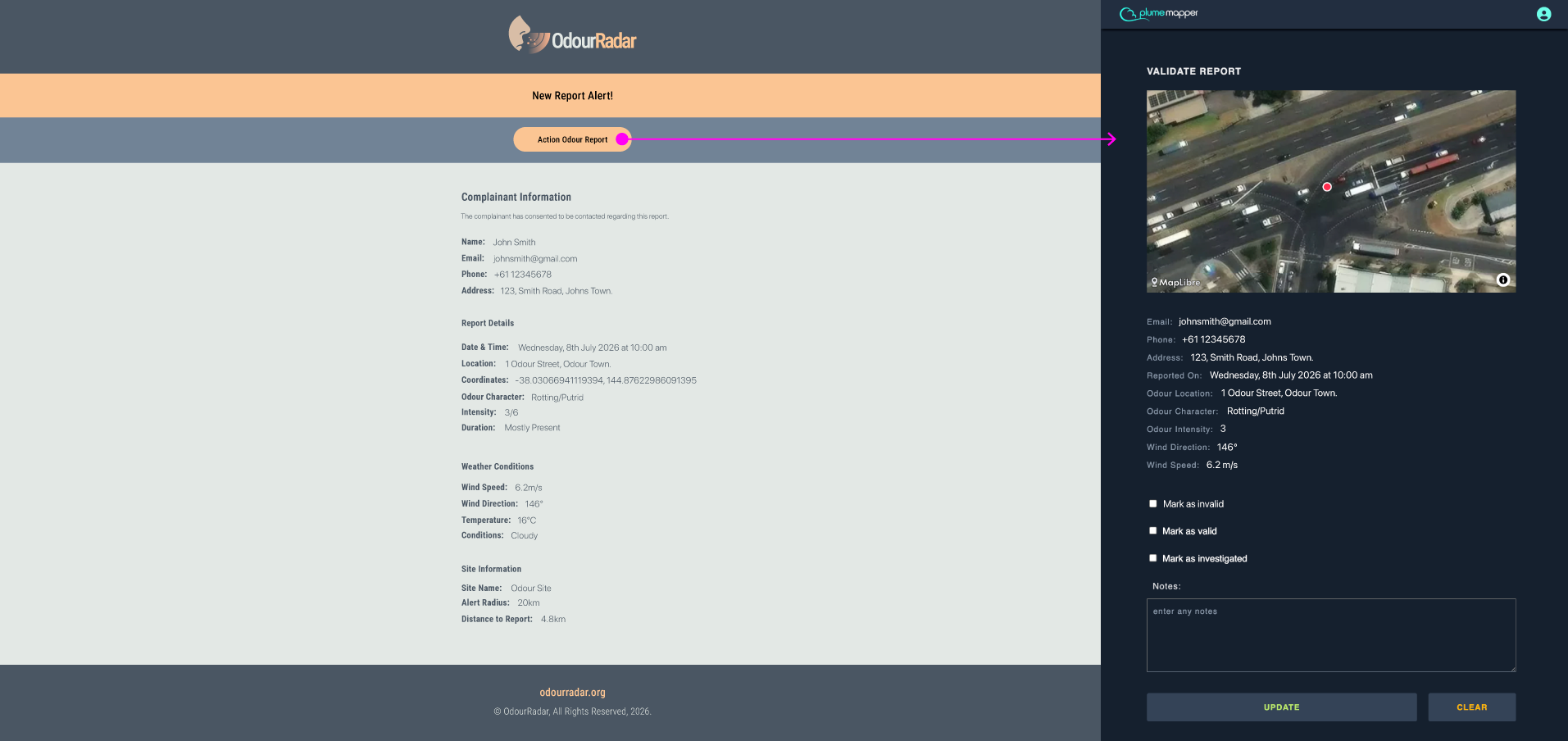
Notified users receive an email with a link to the report.
1. Click the link and log in if prompted.
2. The Validate Report page shows a map of where the odour was noticed, and the report details, including when it was reported, odour character, intensity, wind and comments.
- The reporter’s email, phone number and address are only shown if they agreed to be contacted.
3. Fill in the update form to record your follow-up. It works the same way as updating a complaint.
A confirmation appears once the report has been saved.
Note: If you see Site not accessible in this account, you are logged in to an account that does not have access to the site. Use Sign out / Log in to switch accounts.
Complaint Details
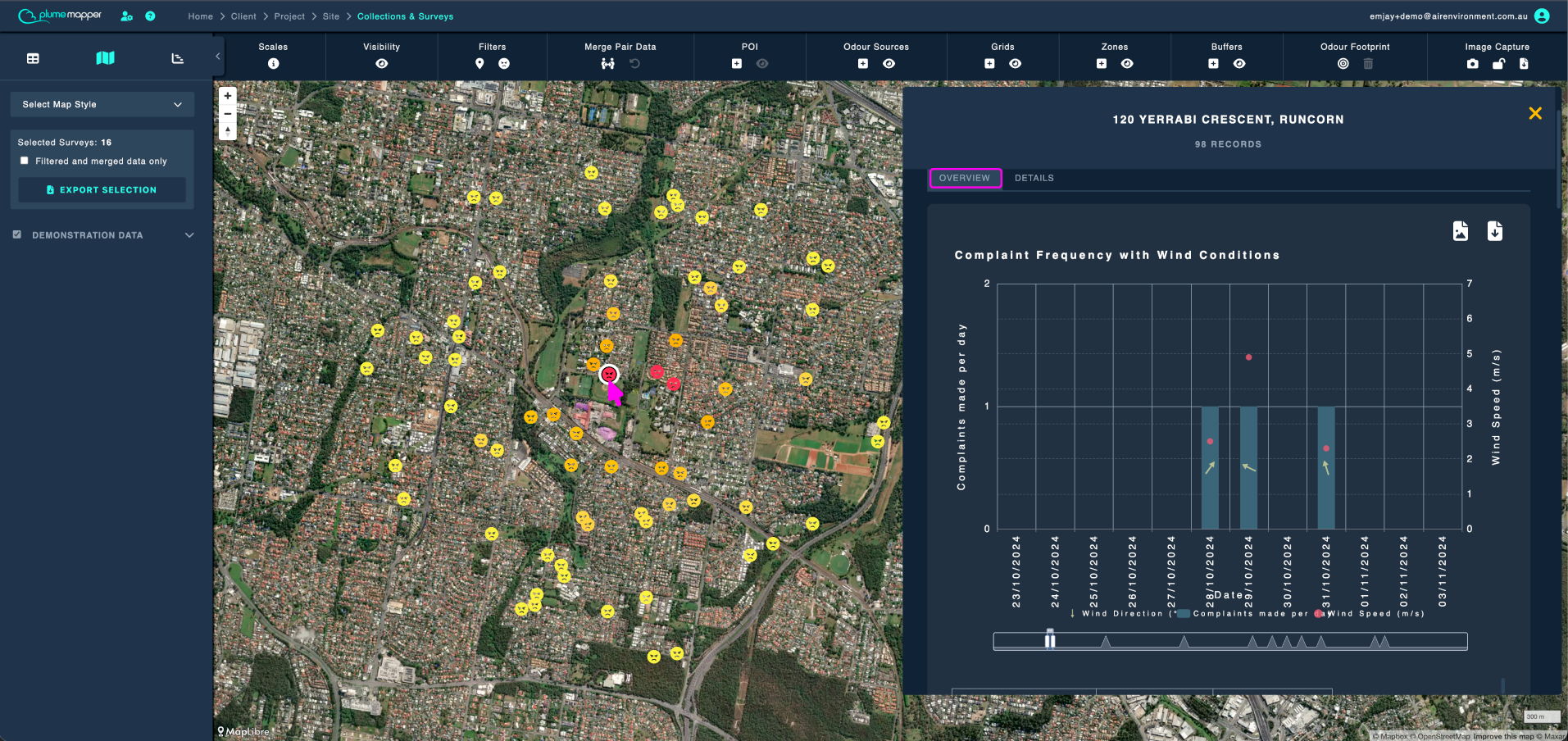
Click on a marker to open the complaint panel. The header shows the address and the number of records, and General Information shows the total entries with the first and most recent dates.
If the marker has more than one record, use the tabs at the top of the panel:
- Overview - complaint frequency with wind conditions, plus frequency distributions of intensity, tone, duration and odour characters.
- Details - a list of the individual complaints.
Each row in the Details tab shows the date, time and odour character, plus three status icons that turn green once set:
- - investigated
- - validated
- - has notes
Click a row to expand it.
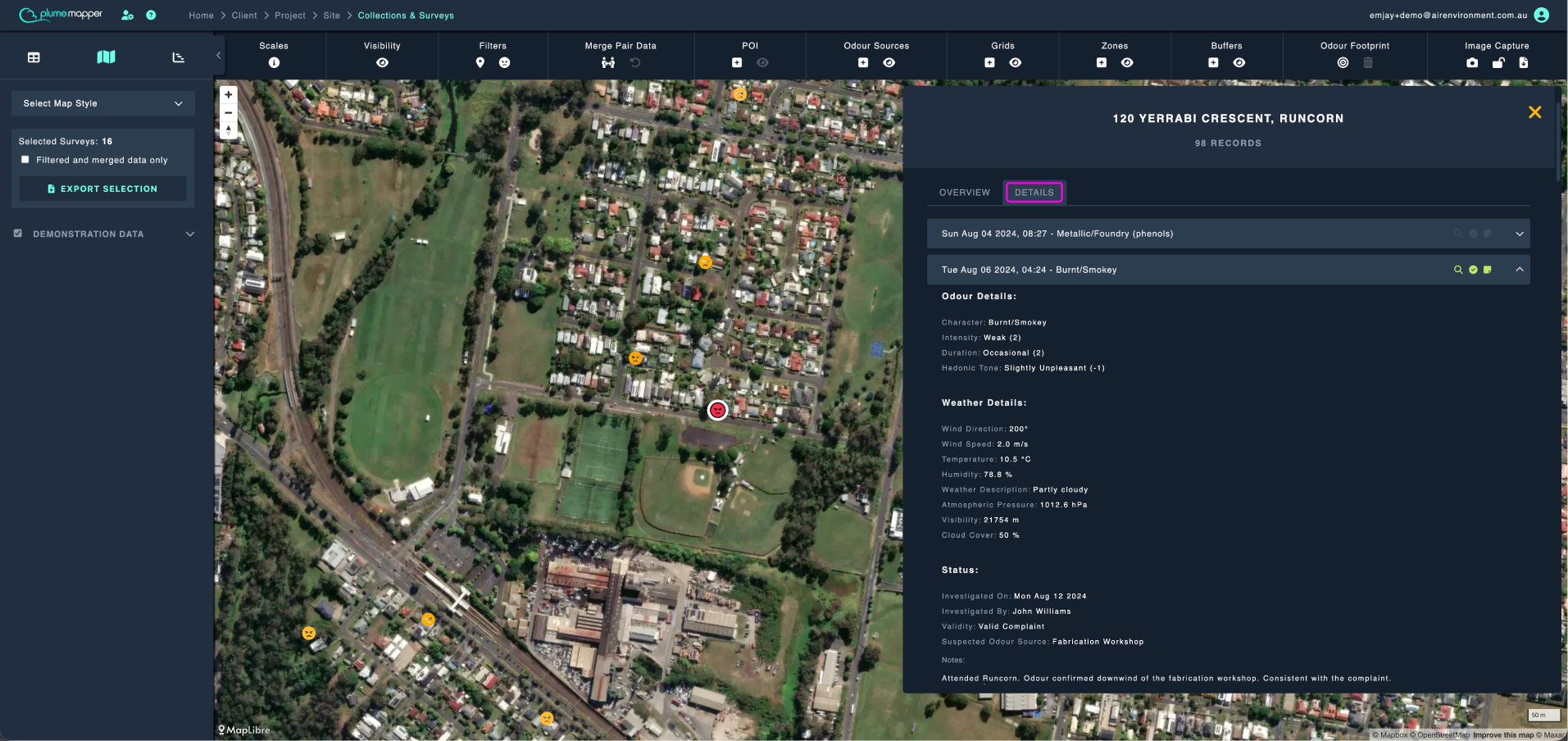
An expanded complaint shows:
- Complainant Details - the name, email, phone number and address. The name is shown as Anonymous, and the contact details are hidden, unless the complainant gave consent for contact. Any comments are shown here too.
- Odour Details - the character, intensity, duration and hedonic tone, using the site’s scales.
- Weather Details - wind direction and speed, temperature, humidity, weather description, atmospheric pressure, visibility and cloud cover.
- Status - who investigated the complaint and when, whether it is valid, the suspected odour source and any notes.
Update a Complaint
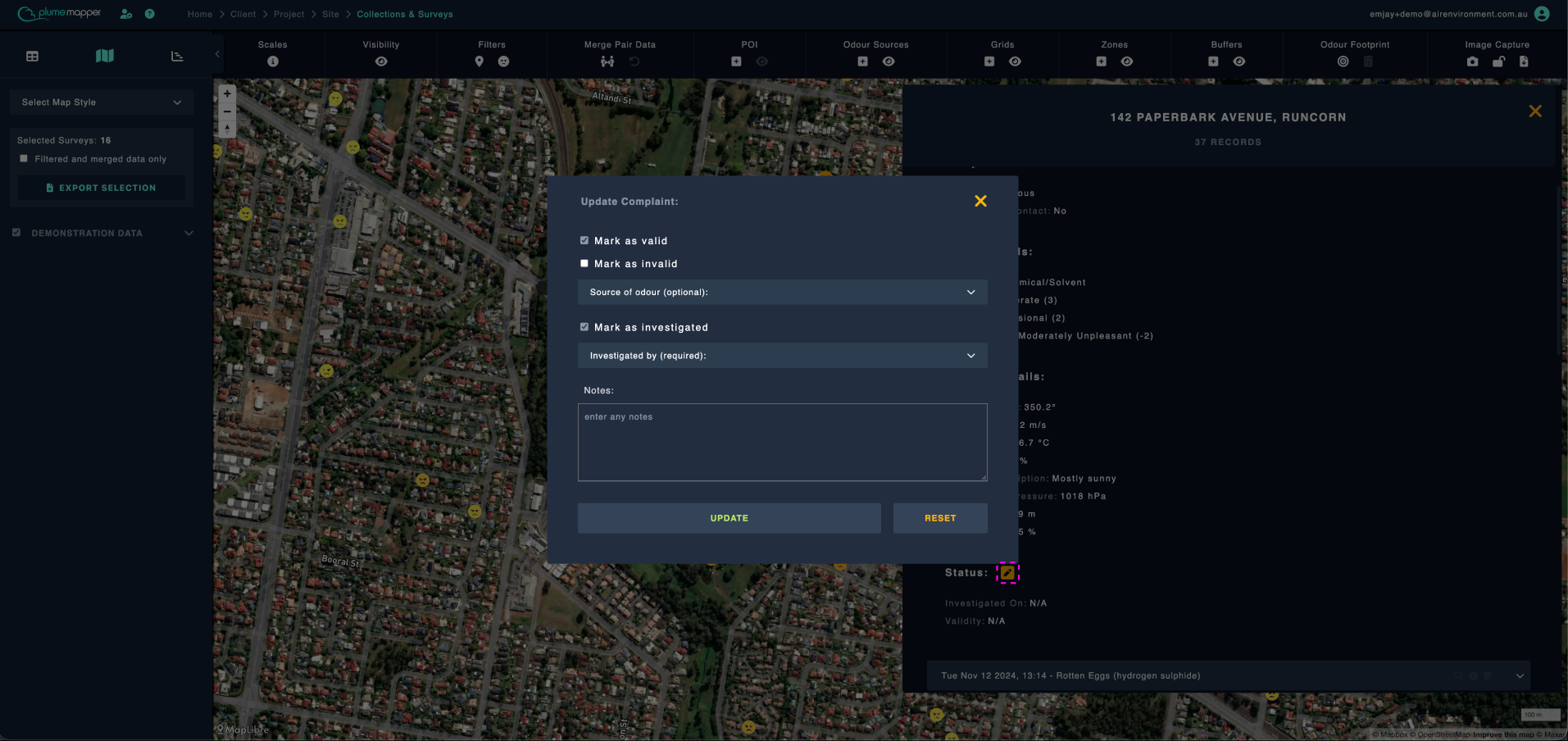
You can record your follow-up on any complaint, whether it was imported or reported through OdourRadar.
1. Expand the complaint and click the icon beside Status.
2. In the Update Complaint window, choose one or more of the following:
- Mark as valid or Mark as invalid - only one can be selected. When a complaint is marked valid, you can also choose the Source of odour from the site’s odour sources and source zones.
- Mark as investigated - records today’s date as the date of investigation. You must then select who it was Investigated by.
- Notes - add any notes.
3. Click Update.
Note: Only these follow-up details can be changed. The complainant, odour and weather details cannot be edited, and complaints cannot be deleted in the web app. Follow-up details on OdourRadar reports are only visible to your organisation.