
Instantaneous Measurements
Dynamic Plume Method.
Create a new instantaneous measurement from the survey map screen, by tapping the button in the bottom menu.
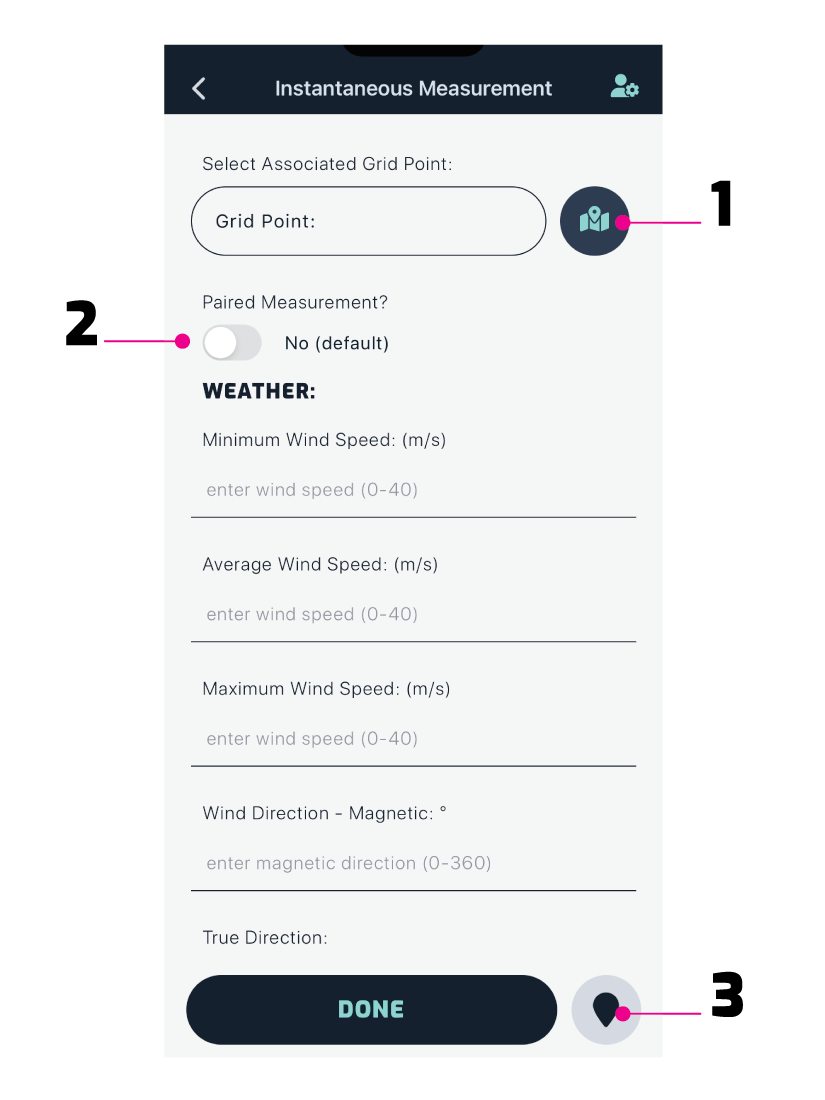
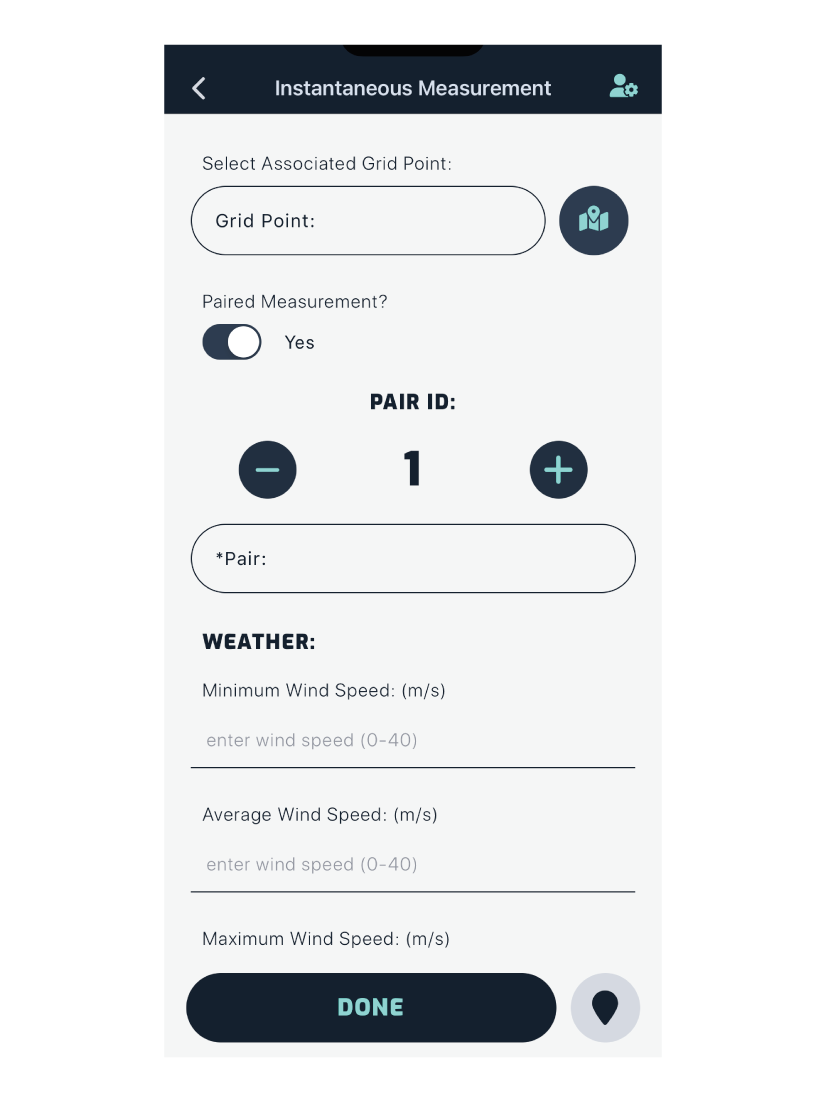
1. Paired Measurement
By default a measurement is unpaired. If you are collecting paired data, toggle the switch to yes.
A dropdown appears with a list of all the surveyors in the field - select the person you are working with and continue.
Important: You and your partner must use the same pair ID for each paired measurement, otherwise merging measurements at the analysis stage will not work.
Manage this by incrementing (+) or decrementing (-) the ID.
2. Associated Grid Point
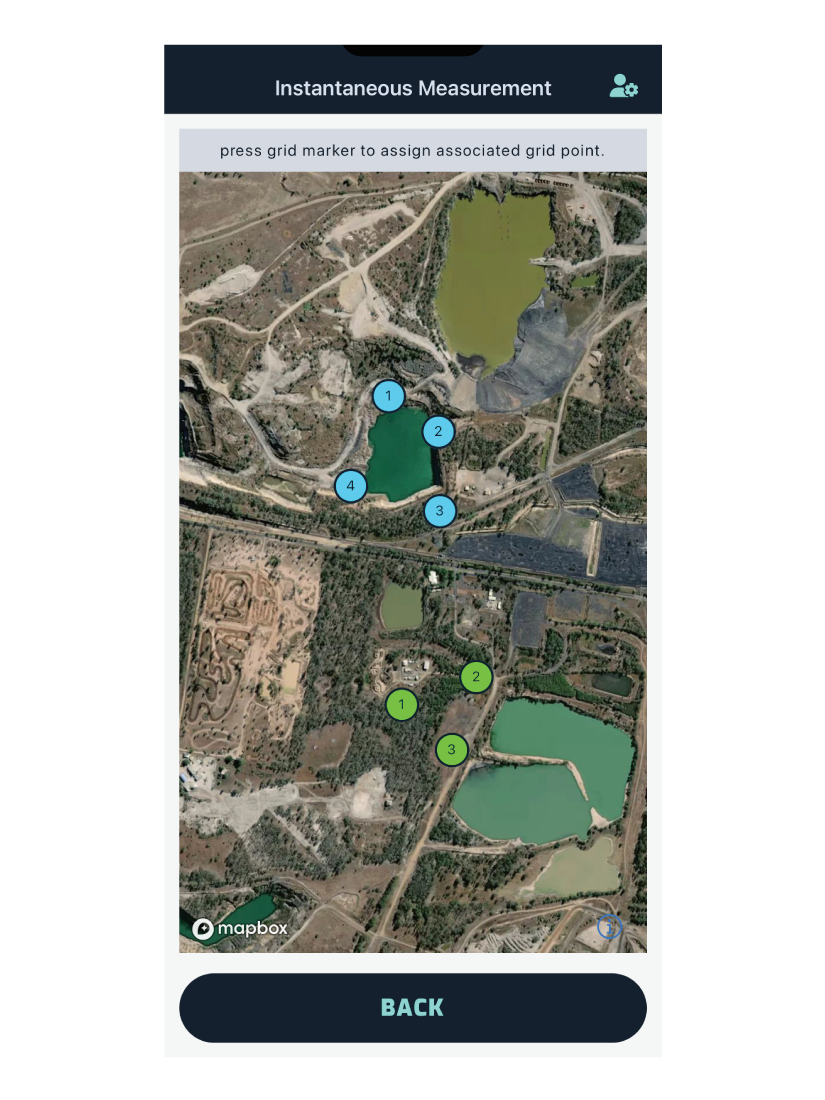
When using grids, this is how you identify a measurement associated with a specific grid point (location).
Select the grid point ID from the dropdown menu, or tap the button to bring up a map with all grid points, as shown below. Select the associated point by tapping it.
Note: This feature only appears if the site has grids set up.
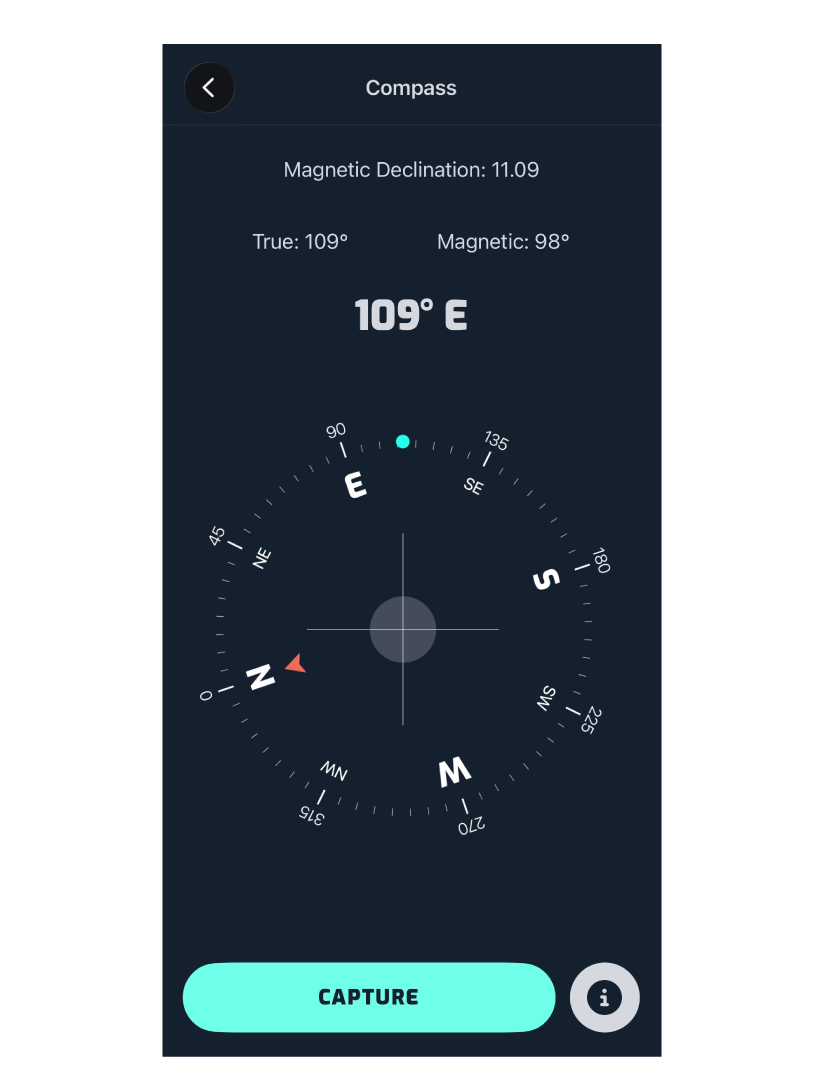
3. Compass
Tap Compass to open the compass and see your current direction aligned to True North.
Tap Capture to automatically fill both the Magnetic and True direction fields in your measurement form.
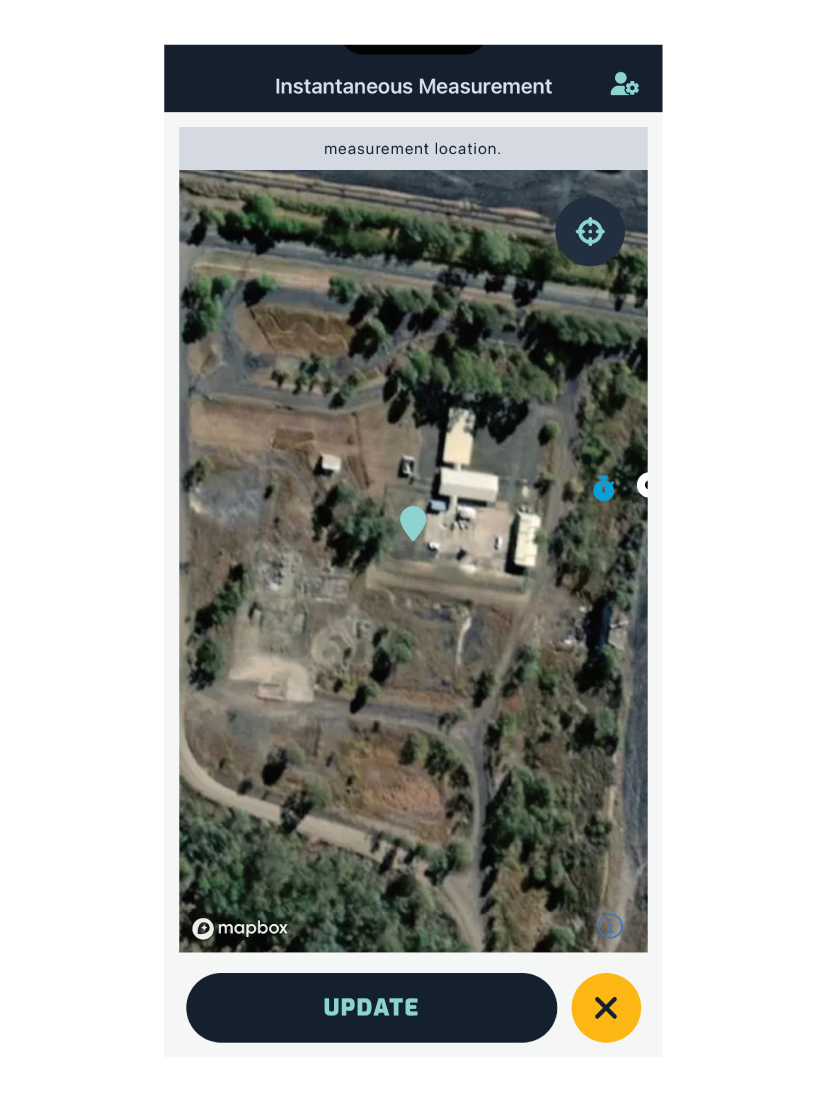
4. Measurement Location
In GPS mode, the measurement location is where your GPS location marker sits on the survey map.
Since GPS can be inaccurate, you can update the measurement location by panning the map until the marker is correctly positioned, then tap Update.
Note: This map automatically pops up if the location wasn’t populated, or if another measurement is within 0.5m of an existing measurement point.
Weather Data
In the weather section, you can enter weather conditions such as:
- Wind Speed - Minimum, Average, Maximum.
- Wind Direction - Magnetic, and True (automated when magnetic direction is entered).
- Temperature - WetBulb, DryBulb.
- Rain & Cloud - Precipitation, Cloud Coverage, Cloud Type.
- Other - Surface atmospheric pressure (hPa), Relative humidity.
Odour Data
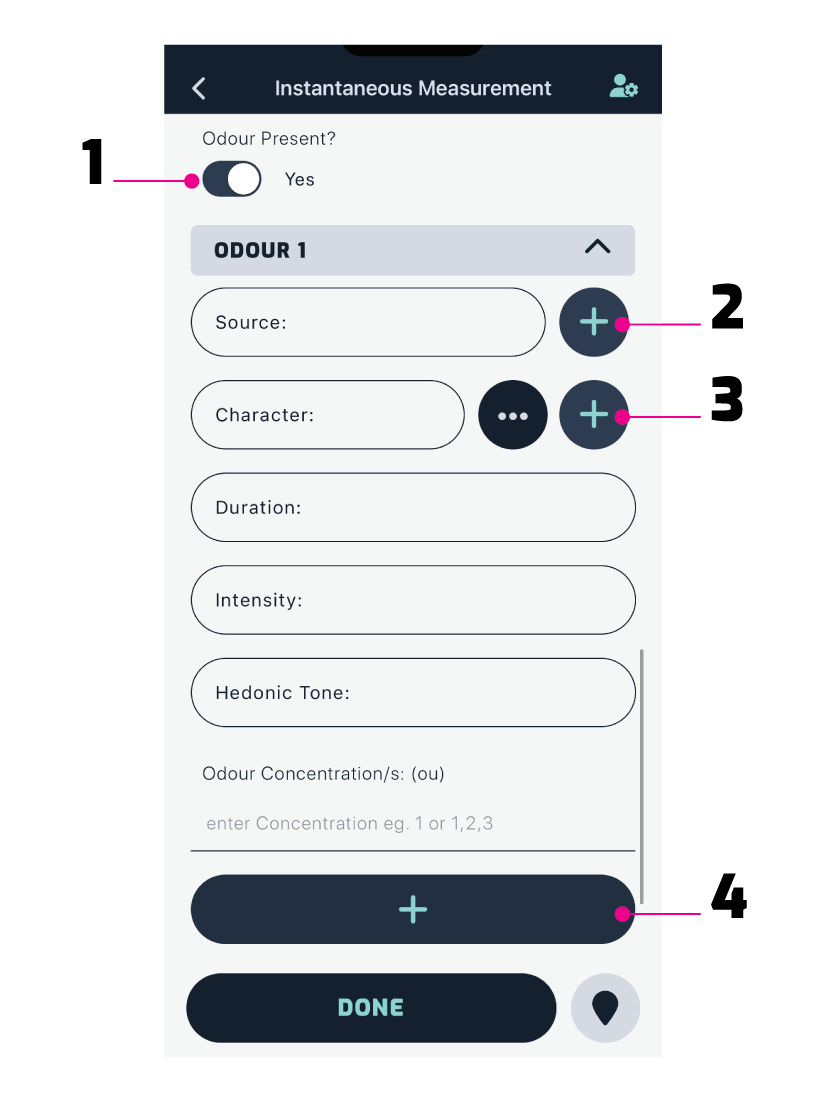
1. Is Odour Present?
By default the status is no odour. If odour is present, toggle the switch to yes. This reveals the odour form, as shown above.
2. Odour Source
Any existing odour sources on the site populate the dropdown. To add a new source, tap the button and you’ll be taken to the add new odour screen.
3. Odour Character
Any existing odour characters populate the dropdown. To add a new character, tap the button and enter the name of the character.
To choose characters from the character wheel (below), tap the button, then choose a category, which opens sub-categories to choose from.
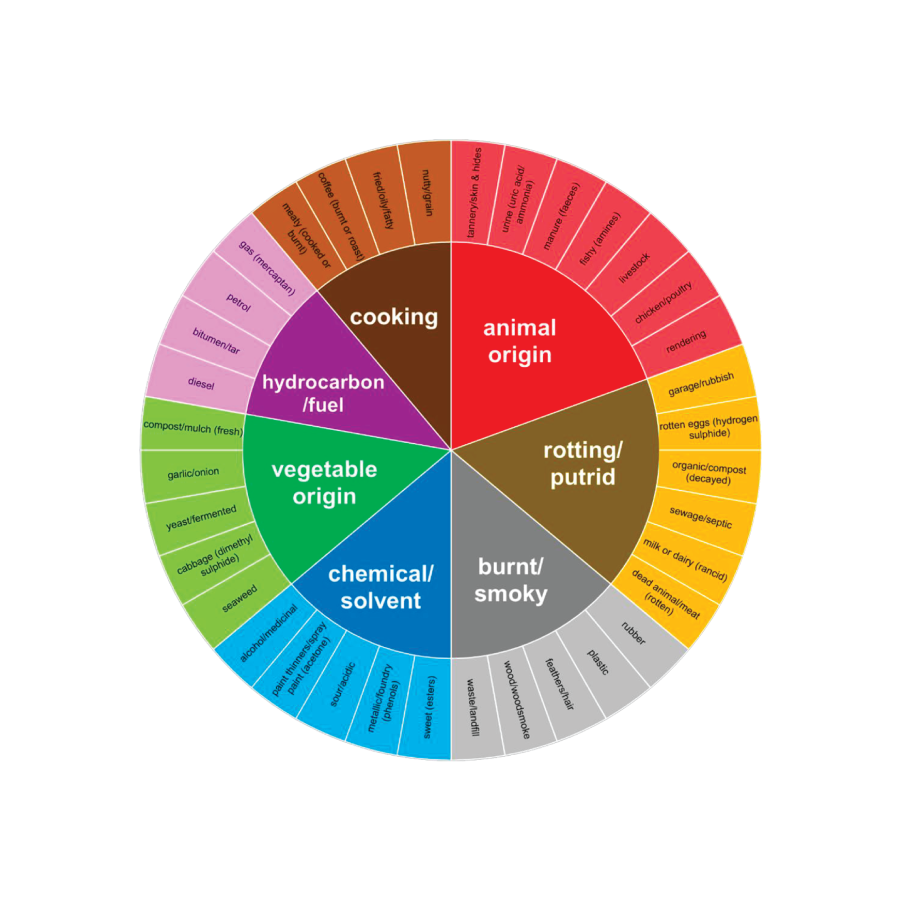
Sourced from: EPA Victoria (Australia) - Guidance for field odour surveillance - 2021, Document.
Intensity
VDI 3882 Part 1 - Default:
- Not Detectable (0)
- Very Weak (1)
- Weak (2)
- Moderate (3)
- Strong (4)
- Very Strong (5)
- Extremely Strong (6)
Hedonic Tone
VDI 3882 Part 2 - Default:
- Extremely Unpleasant (-4)
- Very Unpleasant (-3)
- Moderately Unpleasant (-2)
- Slightly Unpleasant (-1)
- Neutral (0)
- Slightly Pleasant (1)
- Moderately Pleasant (2)
- Very Pleasant (3)
- Extremely Pleasant (4)
Duration
Default:
- Not Present (0)
- Fleeting/Transient (1)
- Intermittent/Occasional (2)
- Mostly Present (3)
- Continuously Present (4)
- Other (5)
Note: If you have added custom scales via Admin Portal, they show alongside the default scales.
Odour Concentration
Record odour concentrations here, if available. To add multiple entries, separate each number with a comma.
4. Recording Multiple Odours
If multiple odours are detected, tap the button after each odour.
Each odour entry opens a form (as above); you can review and delete each odour entry.
Syncing Site Data
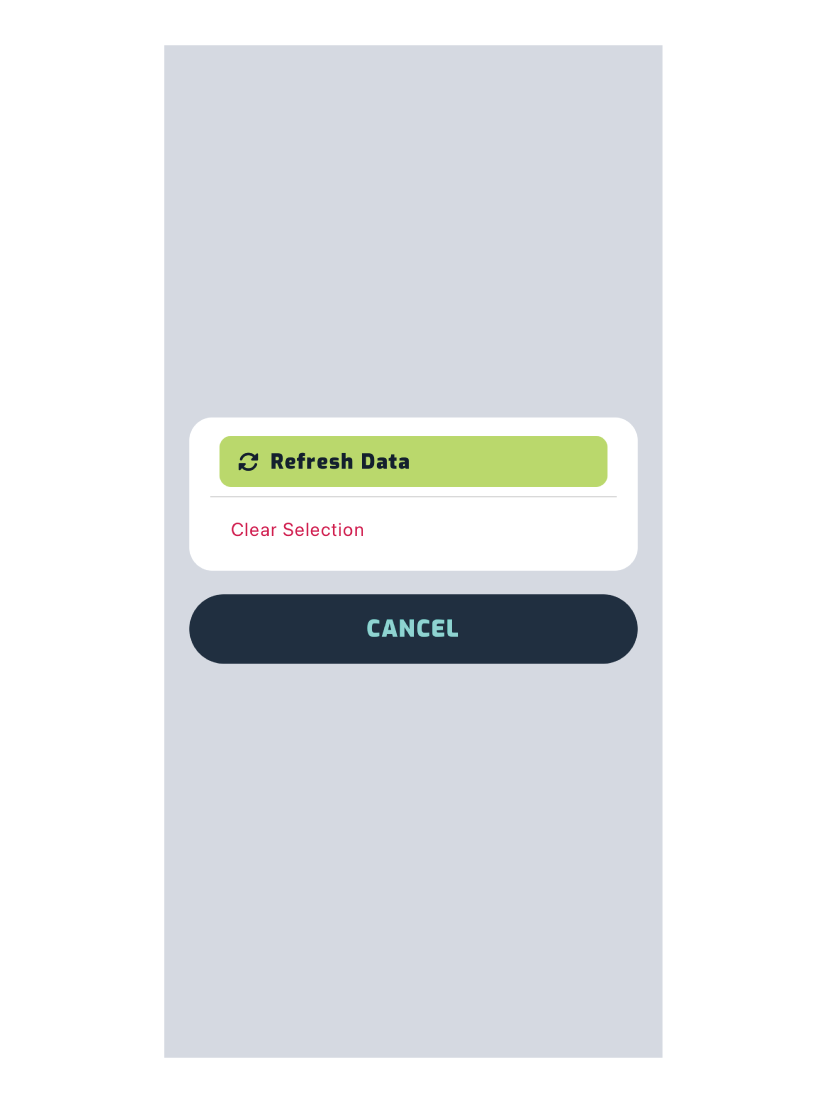
When you select an associated grid point, character or source from the dropdowns, you’ll see a Refresh Data button, as shown below.
If another assessor has added a new source, character or grid point and it doesn’t appear in your dropdown, tap Refresh Data to update the list.
Note: The button can only be tapped once every minute.
Pollutant Data
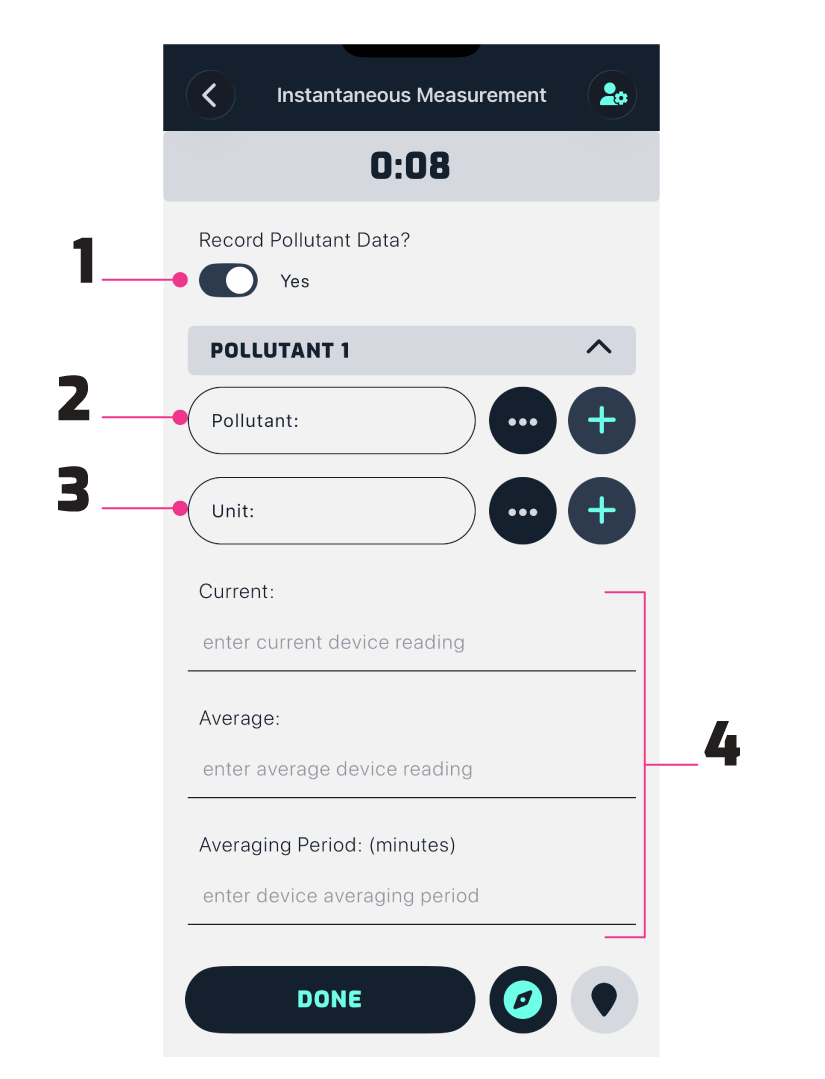
1. Are Pollutants Present?
By default the pollutant status is no. If a pollutant is present, toggle the switch to yes. This reveals the pollutant form, as shown above.
2. The Type of Pollutant
To select from a pre-defined pollutant list (below), tap the button. To add a new pollutant, tap the button and enter the name of the pollutant.
When you select an option from the dropdown, the unit of measurement is filled in automatically. Previously used pollutant-unit pairs are saved, so you can quickly reuse them.
- Ammonia
- Carbon dioxide
- Carbon disulfide
- Carbon monoxide
- Dimethyl disulfide
- Dimethyl sulfide
- Hydrogen sulfide
- Nitrogen dioxide
- Oxygen
- Ozone
- Particles PM10
- Particles PM2.5
- Particles Total
- Sulfur dioxide
- Total volatile organic compounds
3. The Unit of Measurement
To select from a pre-defined list of units (below), tap the button. To add a new unit of measurement, tap the button and enter the name of the unit.
- ppb
- pphm
- ppm
- µg/m3
- mg/m3
- %
4. The Reading
The fields you fill in depend on the device you are using to record pollutant data:
- Current reading
- Average reading
- Averaging period
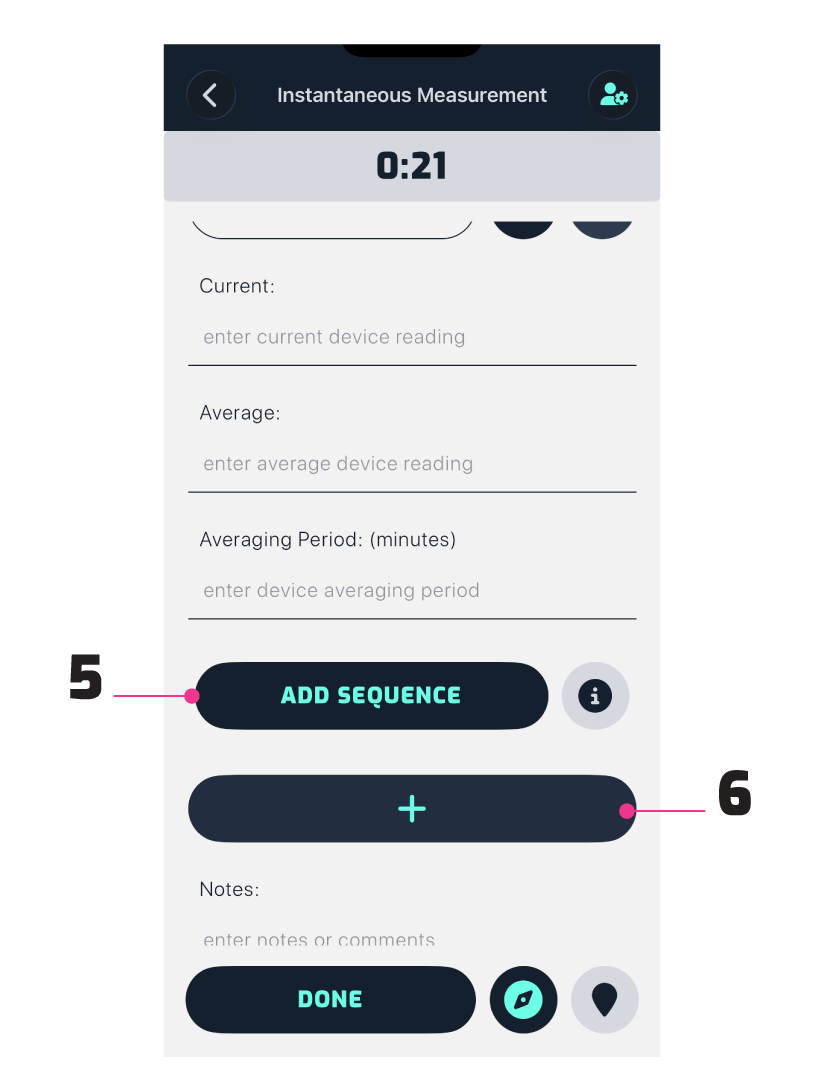
5. A Sequence of Readings
To add a sequence of readings, enter a reading in the input field above the add button, then tap Add. You can only enter one reading at a time.
Each reading shows in the box above the input field. Remove the last reading you entered by tapping the button.
Once you have finished adding all the readings, tap Save to return to the measurement screen.
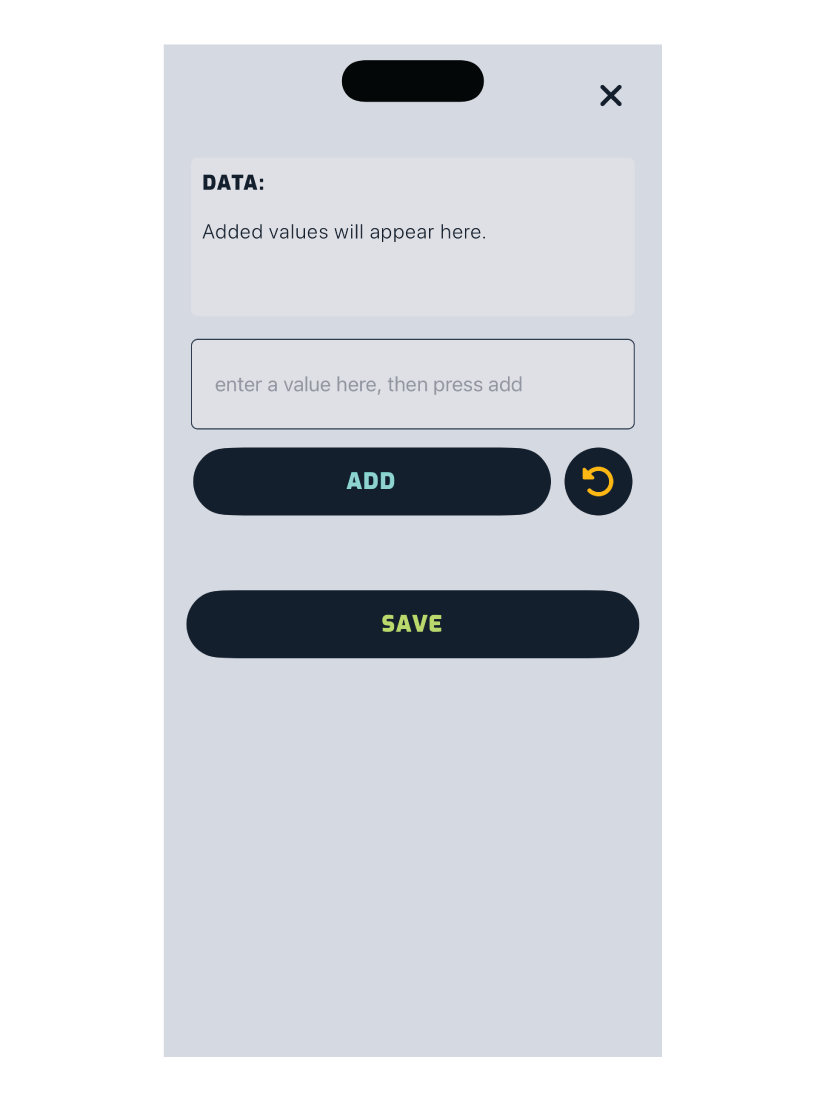
6. Recording Multiple Pollutants
If there are multiple pollutants, tap the button after recording each one.
Each pollutant entry populates a form; you can review and delete each pollutant entry.
Tap Done when complete and the measurement will appear on the survey map screen.