Map Feature Visibility
There are two ways to control what is visible on the map.
1. Through the Visibility panel.
2. Via the feature list.
1. Through the Visibility Panel
Click the icon under Visibility on the map toolbar.
This is a quick toggle option to easily switch the visibility state of:
1.a. Marker colours, by scale.
This will control the colour of the measurement markers.
- Intensity: the highest intensity recorded within the measurement data (default).
- Odour Hour: only shown when using the EPA Victoria (Australia) scales, and timed measurements are present.
- Hedonic tone: the highest hedonic tone recorded within the measurement data - replaced by your custom tone scale, under its own name, if one is enabled for the site.
- Pollutants: the highest pollutant value recorded within the measurement data.
1.b. Measurements.
- Markers: Show or hide measurements on the map.
- Wind vectors: Show or hide the wind arrow, if there is wind data recorded on the measurement.
- IDs: Show or hide the measurement ID.
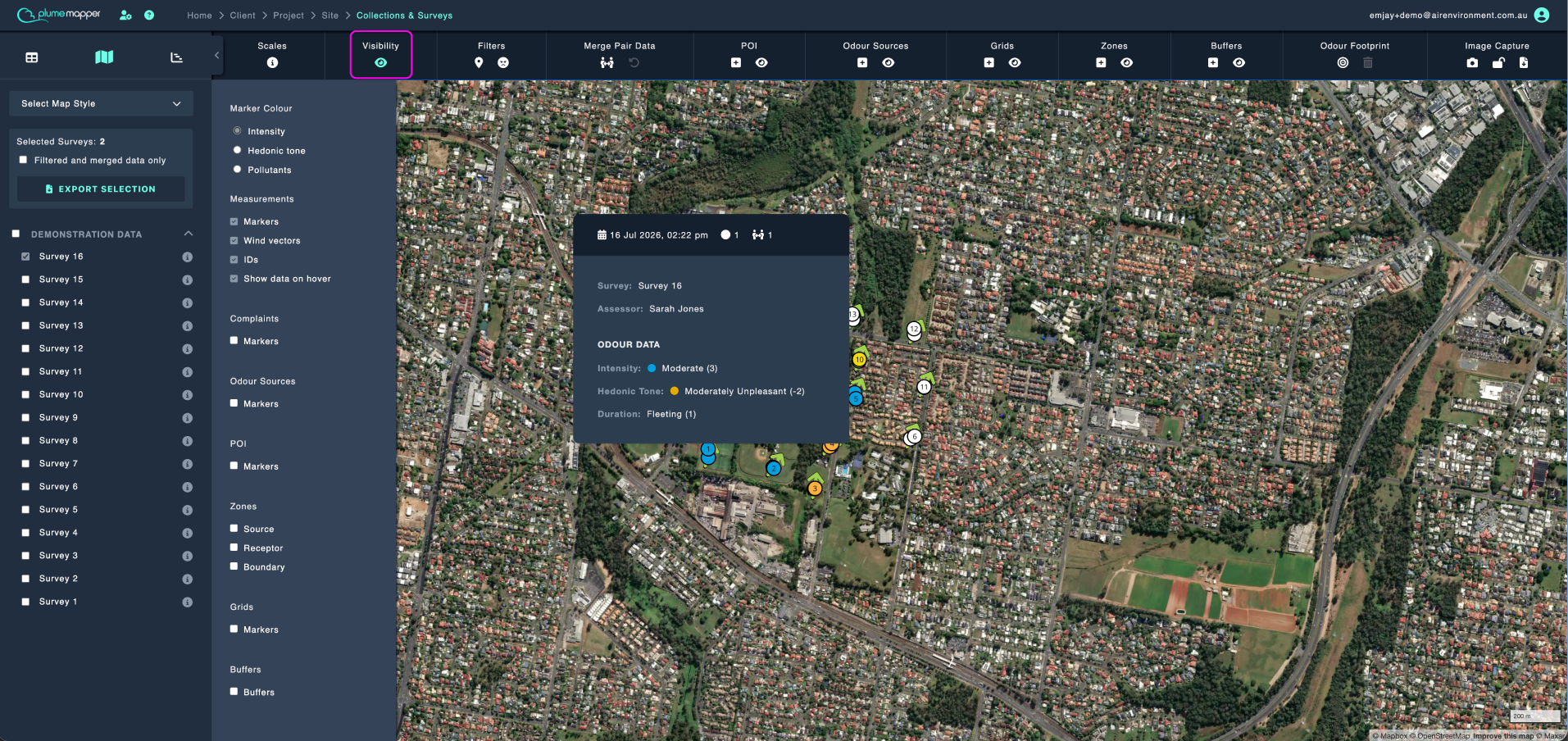
- Show data on hover: when checked, you can view a snapshot of measurement data, as shown in the image below.
1.c. Complaints.
- When the site only has one type, a single Markers checkbox is shown.
- When the site has both, you get All, Imported Complaints and OdourRadar Reports.
Note: This section is only shown when the site has imported complaints or OdourRadar reports.
1.d. Odour Sources.
- Show or hide static odour sources.
1.e. POI.
- Markers: Show or hide points of interest.
- Labels: Show or hide the POI labels.
1.f. Zones.
Zones are toggled by type, rather than all at once:
- Source
- Receptor
- Boundary
Once at least one type is visible, you will also get:
- Labels: Show or hide zone names.
- Labels (Grouped Zones): only shown when the site has grouped zones.
- Draggable Labels: lets you drag a label away from its zone, which is useful when labels overlap in a report image.
1.g. Grids.
- Show or hide grid points.
1.h. Buffers.
- Buffers: Show or hide buffers.
- Names: Show or hide the name of each buffer.
- Labels: Show or hide the separation distance of each buffer.
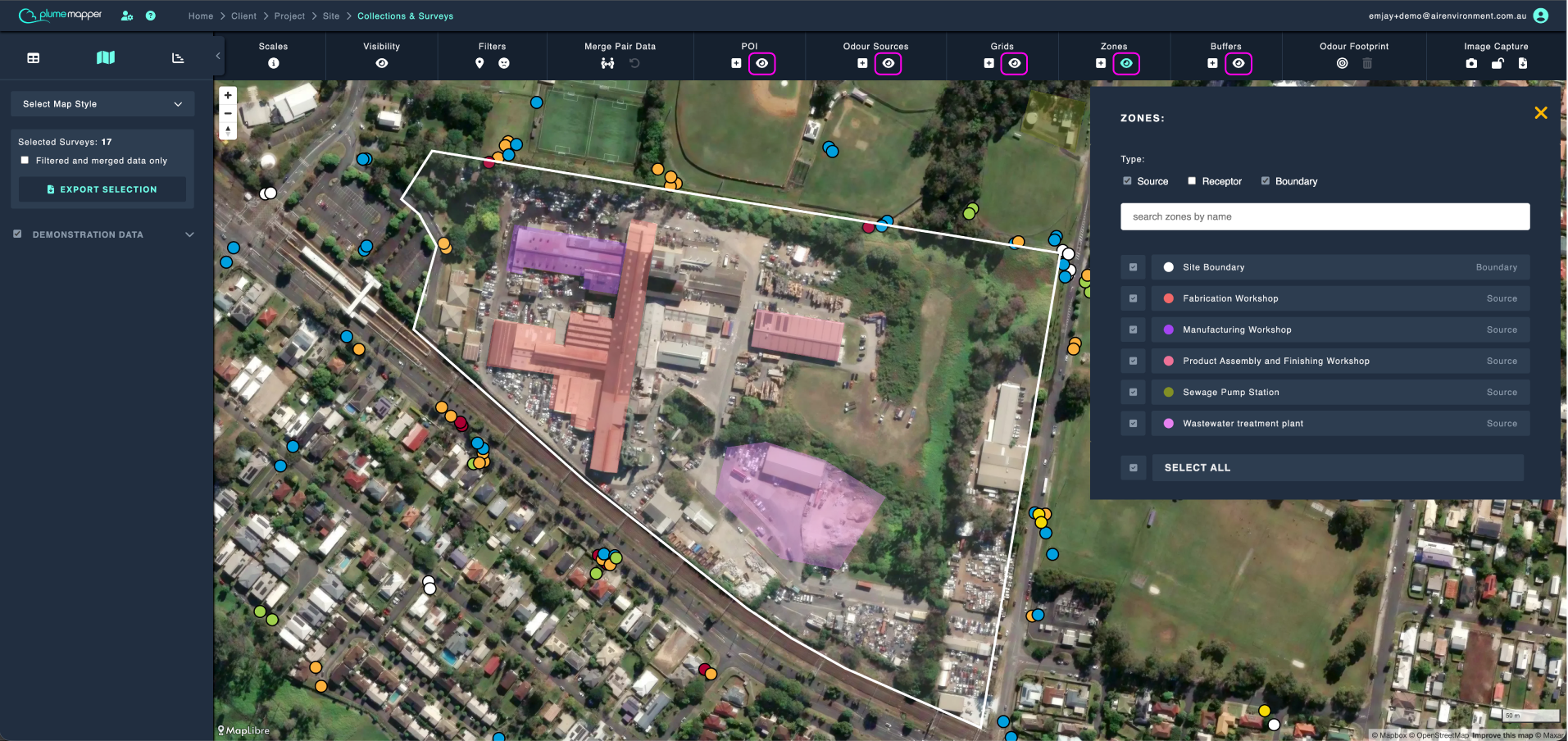
2. Via the Feature List in the Toolbar
Click the icon, under the feature to open the modal.
- For zones you can select the zone type; source, boundary or receptor, as shown below.
- You can search for the feature, by name in the input field. POI can also be searched by type.
- Check or uncheck the items on the list you wish to be visible on the map.
- Use Select All at the bottom of the list to show or hide everything at once.
Note: If you have filtered what is visible on the map from this list, toggling visibility from the visibility panel will only show the filtered items.